EDI Screens
This section covers the Supplier/Customer/Account/Destination EDI screens as a collective group, but note that they are individual screens. In other words, the Supplier EDI screen, the Customer EDI screen, the Account EDI screen, and the Destination EDI screen are each separate screens but will be discussed as a unit because their functionality is the same. The Electronic Data Interchange (EDI) screens are used to configure EDI settings for Suppliers, Customers, Accounts, and Destinations that want to use the following EDI services: TABS, Toptech Data Services (TDS), SAP, PETROEX, and ELVIS, etc. Certain EDI services may require multiple business levels, i.e. Supplier, Customer, and Account. For example, both TABS and PETROEX have multiple levels of EDI.
TDS and TMS7
TDS provides a set of services that enables clients to utilize load transaction data according to their particular needs and the needs of their customers and partners using a web based portal. Each TDS client’s lifting data is immediately available via the Internet by accessing the Toptech Data website at www.toptechdata.com. Entering a valid username and password allows user full access to the suite of services.
Note: There are several steps that must be performed to configure a TMS7 terminal for TDS services. If you do not have access to the OS level, you must contact Toptech’s TMS or TDS Support so they can perform these functions.
Screen Layout
To access the Supplier, Customer, Account, or Destination EDI screen, complete the following:
-
On the TMS7 Home screen, search for '[Supplier/Customer/Account/Destination] EDI' in the home screen search bar.
-
Select desired EDI screen.
-
Alternatively, a user can navigate to these screens using the Business menu:
-
Select the Business menu.
-
Select the 'Supplier/Customer/Account/Destination' sub-menu.
-
Select the EDI screen from the sub-menu.
-
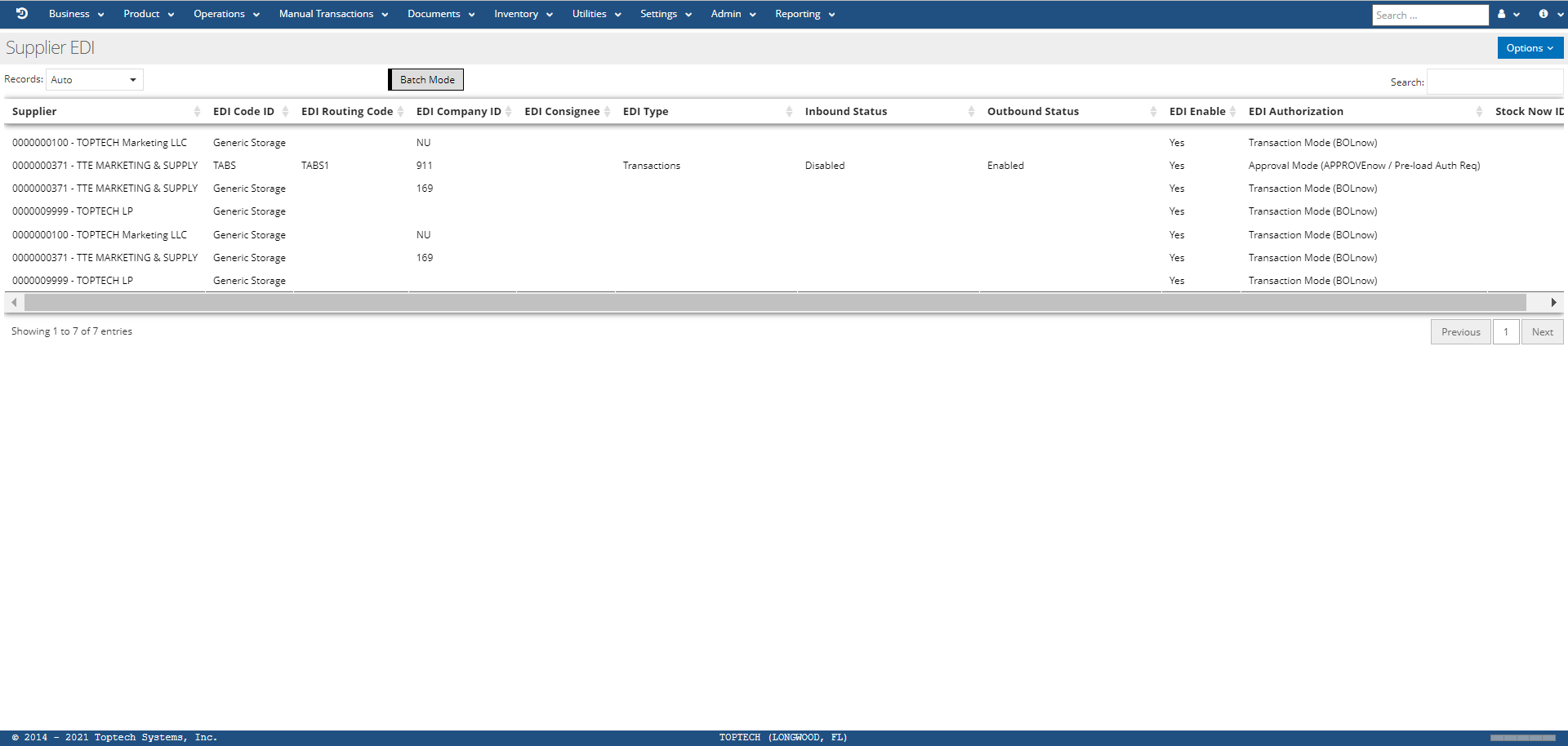
The EDI screens will list records for any of the business entity records that have been configured with an EDI code. Note that these screens appear as embeds on the respective Suppliers, Customers, Accounts, and Destinations master screens; EDI can be configured from the EDI screens or these master screens. Below is an example of the Supplier EDI screen.
EDI: Detail
A user can select any record to the view the EDI: Detail screen for a record, or select 'New' from the 'Options' menu to create a new record. A user can configure EDI settings for a specific record using the Detail screen. Below is an example of the Supplier EDI: Detail screen.
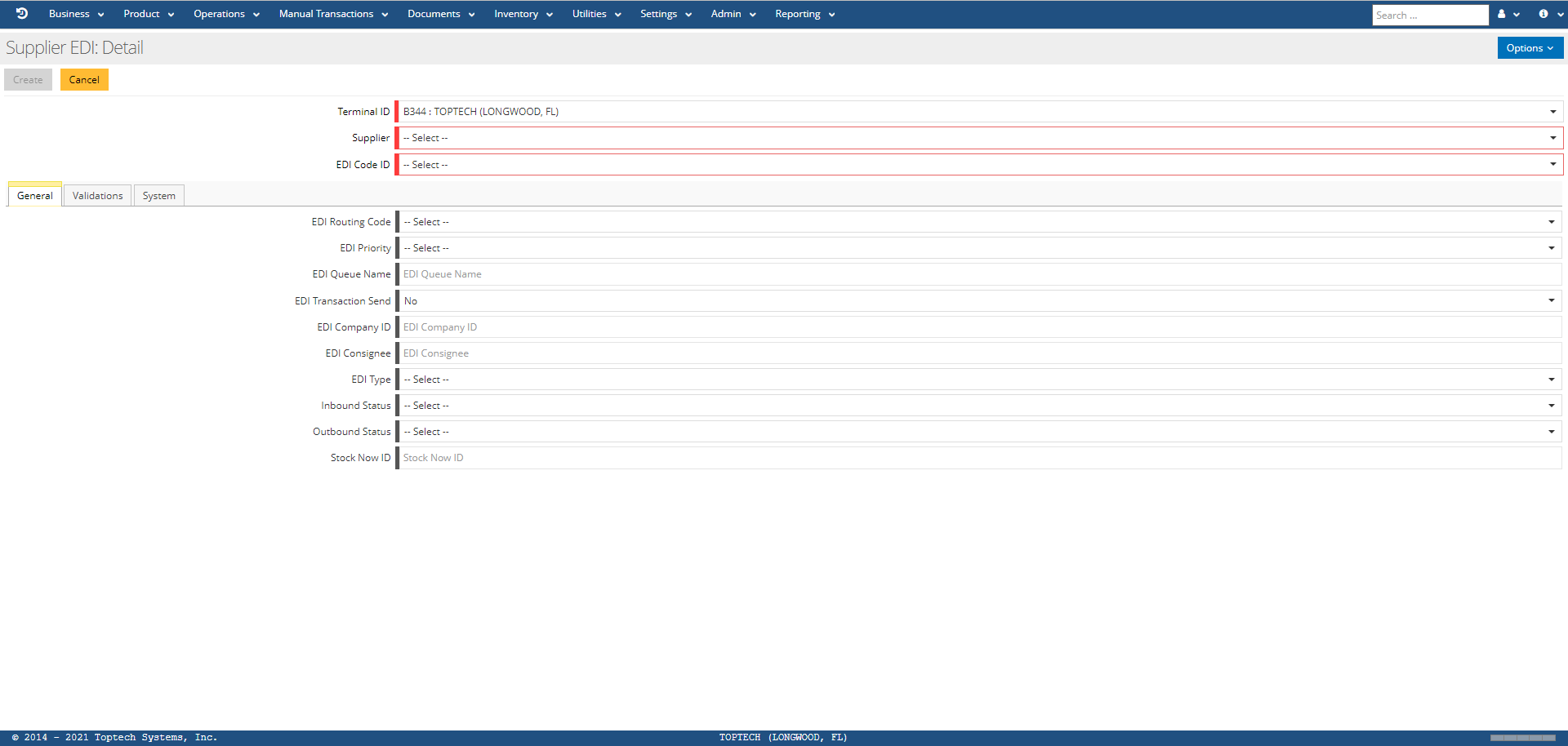
The general features of the EDI: Detail screen are defined in the table below:
| Feature | Description |
|---|---|
| Options |
The 'Options' menu contains the following features:
|
| Terminal ID | Select the terminal from the drop-down menu. |
| Supplier/Customer/Account/Destination | Depending on which EDI screen you are using, you will need to select the required business entities from the drop-down menus. For example, the Destination EDI screen requires you to select a Supplier, Customer, Account, and Destination. |
| EDI Code ID |
Select an EDI Code from the drop-down menu. Options include:
|
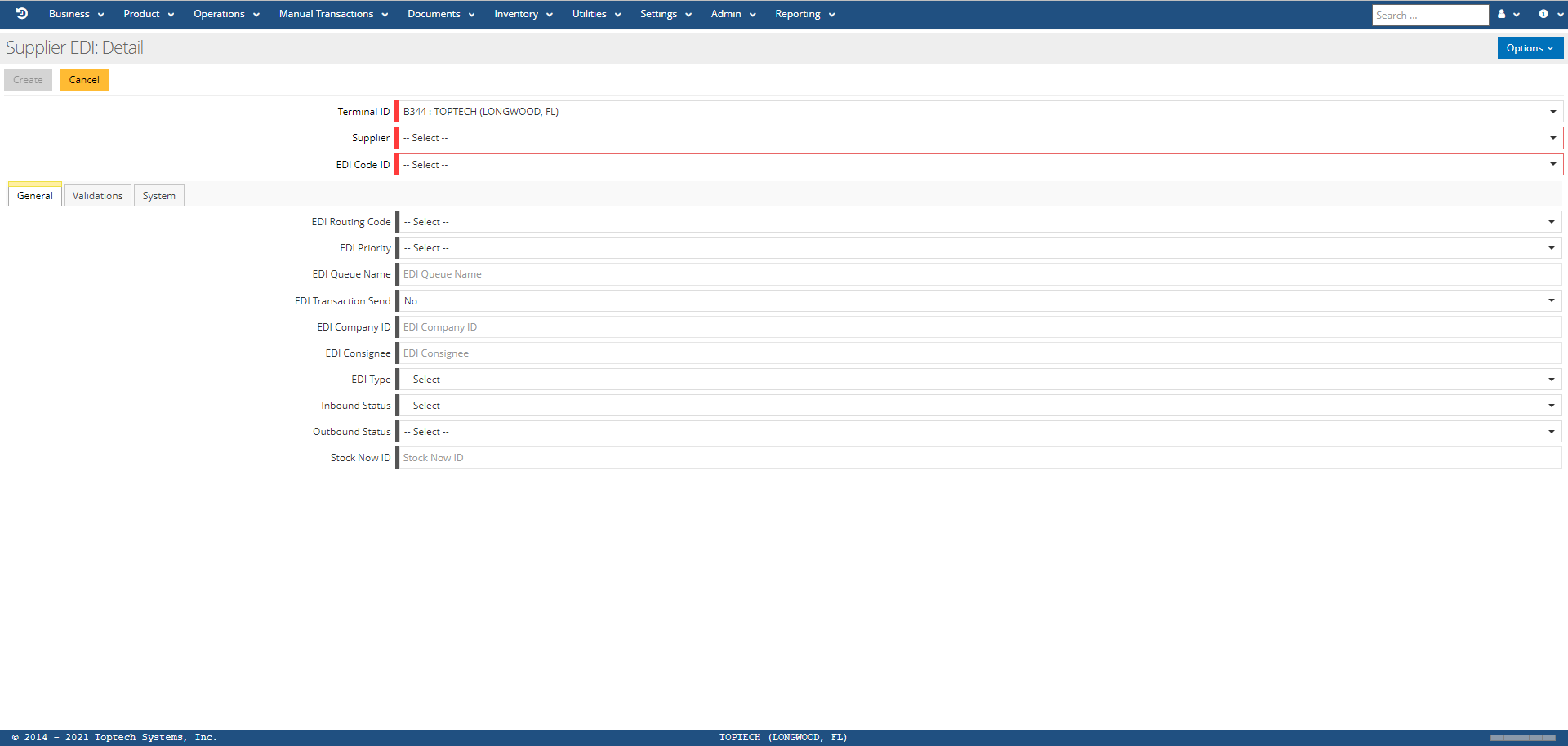
General Tab
| Feature | Description |
|---|---|
| EDI Routing Code |
Internal TMS7 routing address that designates where generated transactions will be routed. It is assumed that a server process will be ‘listening’ for transactions in the outbound queue with this route code. Options Include:
|
| EDI Priority |
Transmission priority. Priority levels are:
|
| EDI Queue Name | This field is specified by Toptech personnel. It identifies the posted server name where data is routed and sent to the appropriate EDI service for processing. For example, TABS1 is the name of the queue where load data is routed to a DTN system. If populated, completed transactions will trigger processing the outbound server program (e.g. TMS TABS). Authorizing the server program will process transactions by batch or by timer. |
| EDI Transaction Send |
If 'Yes' is selected, this indicates load transactions are sent to the Host system. If 'No' is selected, this indicates load transactions will not be sent to the Host system. |
| EDI Company ID | TABS Company code assigned by PIDX. This is required by a control record. |
| EDI Consignee | PETROEX Consignee 14-character identifier, used to identify the record in the EDI feed. Mutually exclusive with “Consignee Entry.” This is required by a consignee record. |
| EDI Type |
The type of EDI configuration. Options include: Delivery Confirmation - Sending acknowledgement from TMS7 to TopHAT that loads were delivered as ordered or actually loaded. Generic Queueing - Sending miscellaneous data (i.e., data other than Maintenance or Transaction data). For example, sending Stock balance records from TMS7 to TopHAT. Maintenance - TMS7 Database Maintenance uploads and downloads. Shipments - Sending shipment records from TMS7 to TopHAT. Transactions - File transfer of load transactions. |
| Inbound Status |
Indicates if EDI processing will receive inbound data from a host (corporate) system. Options include:
|
| Outbound Status |
Indicates if EDI processing will transmit outbound data to other systems (e.g., TDS). Options include:
|
| Stock Now ID |
Customer ID used when the TDS service “STOCKnow” is enabled. Note that STOCKnow is a component of TDS that provides timely views of a supplier's inventory at third-party terminals. This gives supplier's the ability to create allocation controls based on time-period, product/product group, or customer/customer group. |
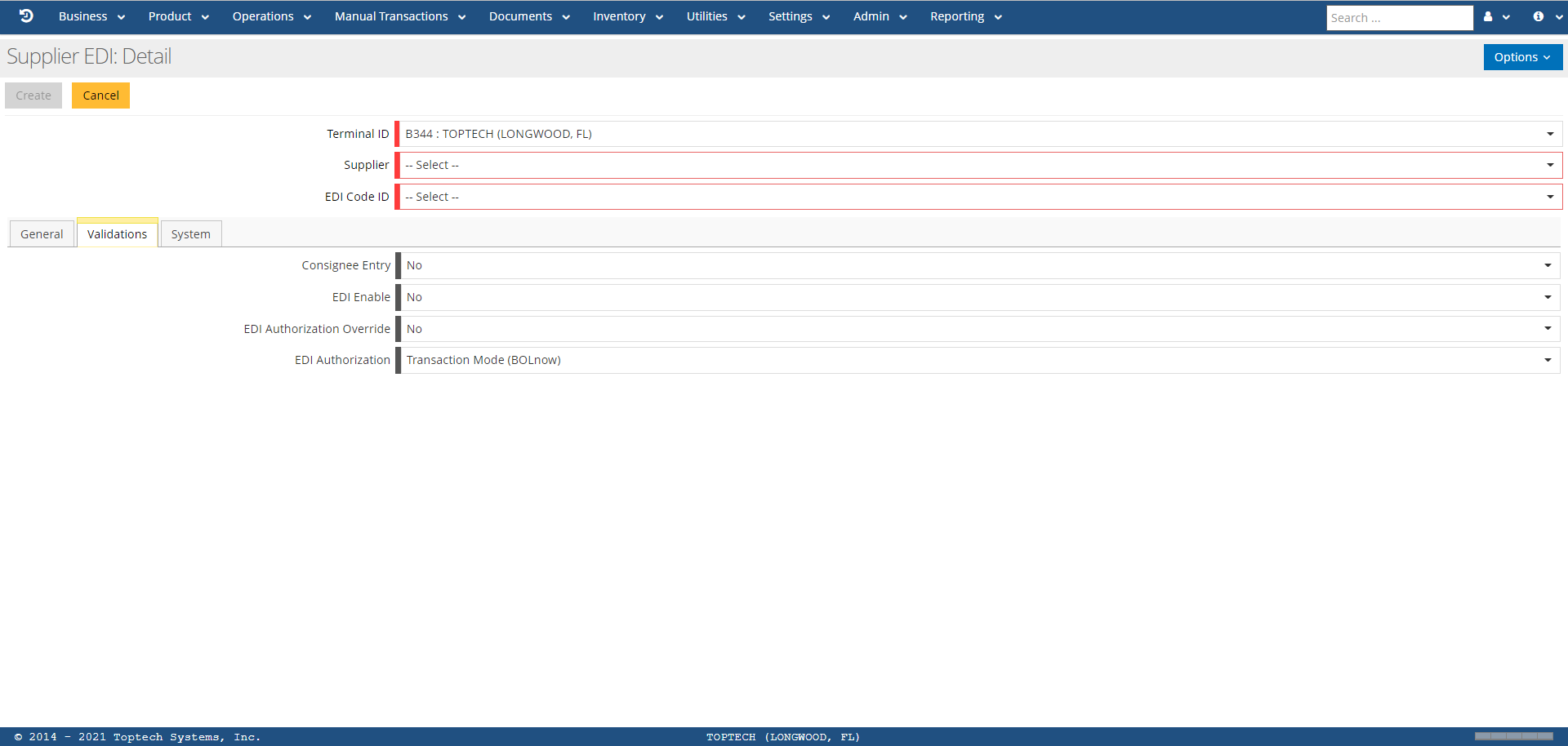
Validations Tab
| Feature | Description |
|---|---|
| Consignee Entry |
If 'Yes' is selected, this indicates that a driver will be prompted for a non-validated EDI consignee that will be sent in the selected EDI feed. If 'No' is selected, this indicates prompting is disabled (default). |
| EDI Enable |
If 'Yes' is selected, this indicates that EDI service for this record is enabled. If 'No' is selected, this indicates that EDI service for this record is disabled. |
| EDI Authorization Override |
If 'Yes' is selected, this indicates the EDI's authorization will not be processed. This is useful for bypassing an authorization if local attempts to resolve authorization failures have proven ineffective, and the terminal wants the driver to load anyway. If 'No' is selected, this indicates that the EDI’s authorization will be processed as usual. |
| EDI Authorization |
Defines the type of authorization required for EDI operations. Options include:
|